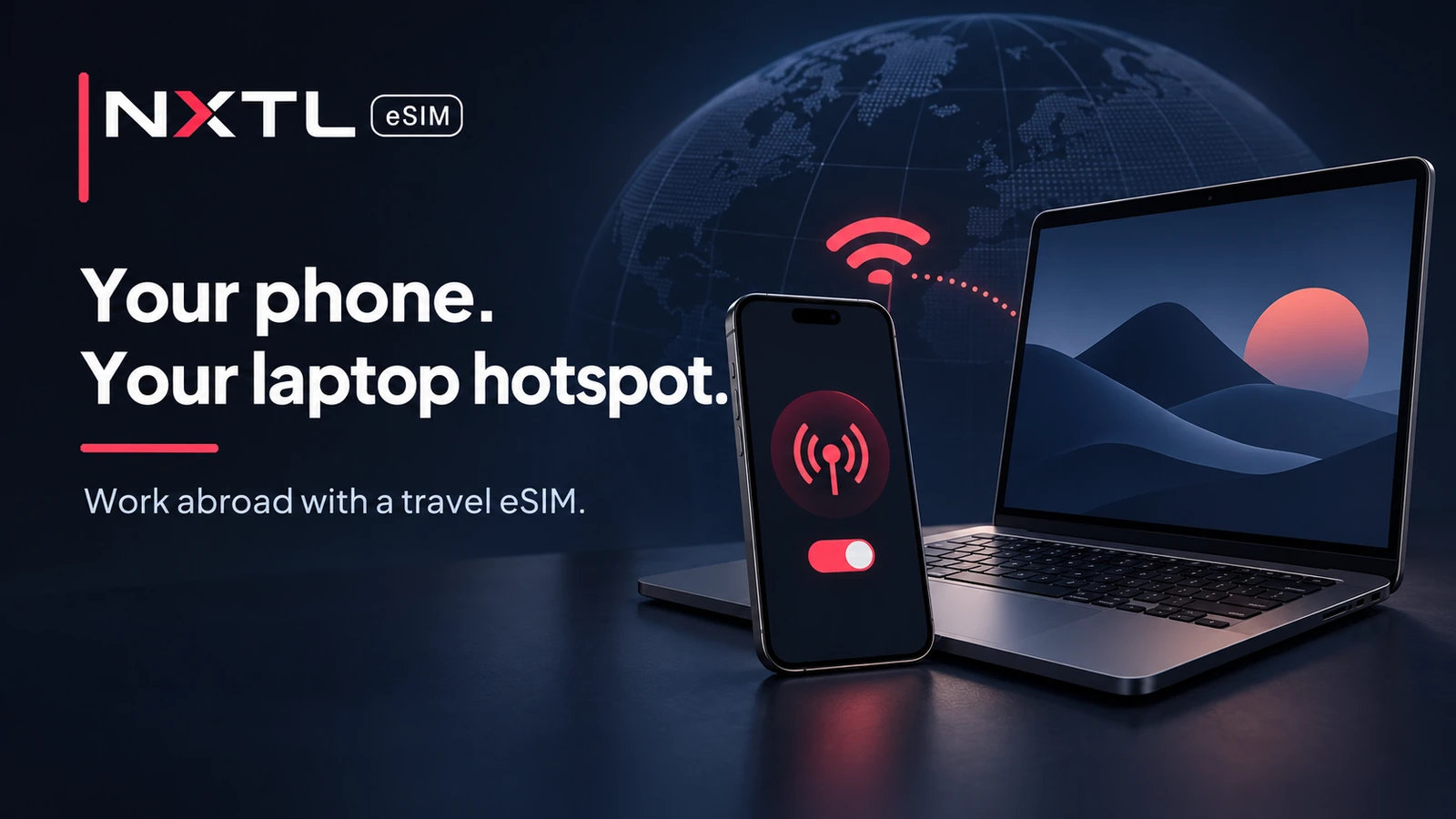
You can connect a laptop through a travel eSIM by sharing your phone’s mobile connection over a hotspot, where the phone and network support tethering. With NXTL, the laptop’s traffic uses the same prepaid balance as the phone. You do not need to install an eSIM in a laptop that only joins the phone’s Wi-Fi hotspot.
Published by NXTL, this guide covers setup, a practical work budget and troubleshooting. Test your actual work applications after arrival, before an important meeting depends on them.
Check the service, the phone and the laptop separately
Start with three questions: does the provider permit your intended tethering use, can the phone share that connection, and can the laptop join it?
NXTL documents hotspot and tethering support subject to compatible devices and network capabilities. Its PAYG service guide describes sharing from the same balance without a separate NXTL hotspot bundle. Every connected device’s traffic still costs money.
NXTL does not use a daily high-speed allowance followed by a scheduled usage-triggered slowdown. This does not guarantee a connection speed: signal, congestion, hardware and network-management conditions still apply. Review the service terms for acceptable-use and network restrictions.
The phone must be compatible and unlocked. The laptop needs suitable Wi-Fi; it does not need cellular hardware for this setup. Direct eSIM installation is a different arrangement, requiring an eSIM-capable cellular laptop and its own profile. Use the compatibility guide if you are choosing between them.
Make phone data work before enabling the hotspot
Follow the NXTL installation and connection guide first. Select NXTL for mobile data, enable roaming on that line and check available balance. Briefly turn off Wi-Fi and load a small webpage on the phone.
If the phone cannot use mobile data, the laptop will not gain a working mobile connection simply by joining its hotspot. Fix the phone connection first. Review the home line’s roaming and automatic data-switching settings too, so another SIM does not supply data unexpectedly.
Connect from an iPhone
- Open Settings, then Personal Hotspot, or Cellular followed by Personal Hotspot.
- Turn on Allow Others to Join and check the Wi-Fi password.
- Keep that screen open while joining from the laptop’s Wi-Fi menu.
- Select the iPhone’s hotspot name and enter its password.
Apple’s Personal Hotspot instructions explain that the connection uses cellular data. Use a password and turn sharing off when finished. Menu wording can vary with language and software version.
Connect from a Google Pixel or another Android phone
On Pixel, open Settings → Network & internet → Hotspot & tethering → Wi-Fi hotspot. Turn it on, check the network name and set a password. Select that network from the laptop’s Wi-Fi menu and enter the password.
Google’s Pixel tethering guide notes that Data Saver must be off for Wi-Fi tethering. Other Android brands use different menus; search Settings for “hotspot” and follow your manufacturer’s instructions. Keep security enabled rather than creating an open hotspot.
Build a work budget from tasks and measured usage
“One day of work” is too vague for a data estimate. Email without attachments, a long video meeting and a cloud folder download create very different traffic.
Here is an illustrative half-day budget. These are assumed quantities, not measured application benchmarks or promises about how much a call will use. Use your own test session to improve them.
| Activity | Assumed data | How to make the assumption more useful |
|---|---|---|
| Browser, email and messaging | 0.25 GB | Check a representative session, including attachments |
| Video meeting | 1.00 GB | Measure with your usual app, camera and quality settings |
| Intentional file transfers | 0.50 GB | Check the files before connecting |
| Phone activity and contingency | 0.25 GB | Leave space for traffic outside the laptop |
| Total | 2.00 GB | Review actual use after the first session |
At a hypothetical $1.00/GB, that session would consume 2 GB × $1.00 = $2.00 of prepaid balance. Five similar sessions would consume 10 GB and $10.00. A separate 4 GB background download would add $4.00 at that assumed rate. This shows why background controls can matter as much as the meeting itself.
The hypothetical rate is not an NXTL quote. Check the live destination and network pricing; actual data and charges depend on what is recorded. If you are buying NXTL for the first time, the initial eSIM purchase is separate from this consumption calculation and includes usable balance.
Stop the laptop treating your phone like unlimited office Wi-Fi
Before connecting, pause large cloud-sync queues and review automatic downloads in the applications you use. Download necessary files and install pending updates on a suitable connection before the work session. Resume normal syncing and updates when you have the connection and budget for them.
On Windows 11, open Settings → Network & internet → Wi-Fi, select the hotspot network and enable Metered connection. Microsoft’s metered-connection guidance explains that this can reduce background data and restrict some automatic updates. It does not block every application from consuming data.
Review cloud storage, photo libraries, game launchers and browser downloads separately on any laptop. Close a meeting or stream when finished, rather than assuming a background tab has stopped. For broader phone settings, use NXTL’s existing mobile-data saving guide.
Compare device counters over the same period with your NXTL usage records. Counters are useful for spotting an unexpected download; do not assume different devices will display identical figures or update simultaneously. NXTL’s optional spending limits act on recorded usage and are not an instant, exact cut-off.
Troubleshoot the part of the connection that failed
- The laptop cannot see the hotspot: check that sharing remains enabled, bring the devices closer and recheck the network name. On supported iPhones, Apple’s hotspot troubleshooting guide suggests trying Maximize Compatibility; it can reduce performance.
- The laptop joins but has no internet: test mobile data on the phone with Wi-Fi off. Then check the selected SIM, balance, usage-limit status and activation-specific APN instructions. Do not delete the eSIM as a first fix.
- Both devices are slow: try a better signal location. Review available NXTL partner networks and their prices before changing operator or preference. A 5G symbol does not establish a guaranteed work-call experience.
- The browser works but a work application does not: test the application and your employer-required VPN separately, following workplace rules. NXTL’s routing guide identifies London as its current internet exit; a local mobile signal does not promise a local-country internet address.
Do not promise yourself that USB tethering will fix every setup. Cable support depends on both devices and software; Google’s guidance identifies limitations for Android-to-Mac tethering. Use the manufacturer’s instructions for the particular pairing.
Plan for an important call
Connect early, try the actual meeting or VPN application and confirm that your phone has power for the session. Keep it ventilated and review battery use during longer sharing sessions. Have a second connection available for work that cannot wait through an outage.
When finished, turn off hotspot sharing and confirm that other devices have disconnected. Before the next workday, review both remaining balance and current network choice. A reliable routine is to test the connection, control background traffic and budget for the work you intend to do.
Related reading: keeping one eSIM for later trips and pay-as-you-go pricing.