Your travel data should help you find your hotel, message your family and book the next train. It does not need to update a game, upload every video you record or stream a small phone screen at the highest available quality.
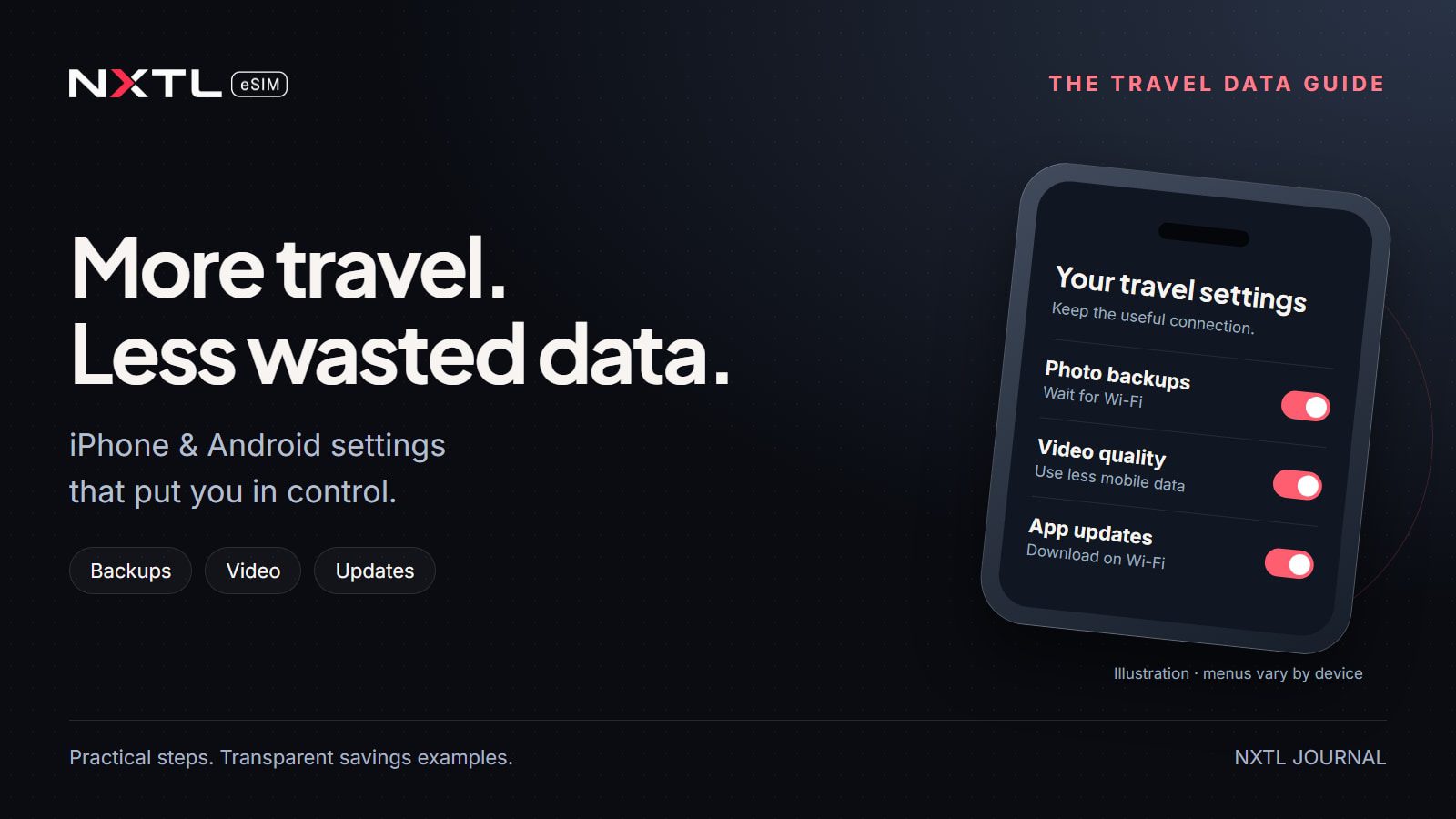
The quickest way to save mobile data is to turn on your phone’s data-saving mode, keep photo backups and app updates on Wi-Fi, reduce video quality, and download maps and entertainment before departure. Then check which apps actually use the most data. The biggest saving depends on what your phone was doing in the first place.
This guide covers the current iPhone and Android documentation reviewed on 14 October 2026, including iOS 27 and Android 17, with separate Pixel and Samsung paths. It is a documentation-based guide, not a claim of hands-on testing on every device. Carrier, region, app version and manufacturer can change menu labels. Search Settings for the named feature if your path differs. See Apple’s releases and Google’s Android 17 release.
What should you change before a trip?
Set these up while you still have reliable Wi-Fi:
- Select the travel eSIM for mobile data. Keep home-line data roaming off unless you intend to use it. Disable automatic switching back to the home line.
- Turn on Low Data Mode on iPhone or Data Saver on Android. Check that important messaging and travel apps still work.
- Keep photo/video backups and app downloads on Wi-Fi. Make a backup before leaving, and arrange another on reliable Wi-Fi during the trip.
- Choose lower mobile streaming quality. Set this inside each video or music app; the phone-wide saver is only a starting point.
- Stop unnecessary chat-media downloads. Photos, videos and documents are the main controls to check. Voice messages need separate caution.
- Download maps, tickets, playlists and programmes. Open them once offline to check they work.
- Record your starting usage. Review the top apps after your first day and adjust the real culprits.

How do you keep data on the right SIM?
With two lines installed, choose the travel line for internet access before you arrive. On iPhone, open Settings → Cellular / Mobile Data → Cellular Data, select the travel line, and turn Allow Cellular Data Switching off if you do not want fallback to the home line. On Pixel, choose the data SIM under Settings → Network & internet → SIMs. On Galaxy, check Settings → Connections → SIM manager; the switching label depends on the model and One UI version.
Roaming and data saving are different controls. Roaming determines whether a line can use a partner network. Low Data Mode or Data Saver reduces some data activity. Turning off roaming for the travel eSIM can disconnect it entirely.
For NXTL, the installation guide says to select NXTL for mobile data and enable Data Roaming on the NXTL line. Keep data roaming off on the home line unless you deliberately use its roaming service. Keeping the home SIM available for calls and SMS can still incur your home carrier’s charges; choosing NXTL for internet does not remove those charges. Switching off the home line entirely is an option if you do not need it, but check whether you need SMS verification first.
Which iPhone settings save mobile data?
1. Enable Low Data Mode for the travel line
Start at Settings → Cellular / Mobile Data. For Dual SIM, select the travel line. On 5G configurations, open Data Mode → Low Data Mode; on some LTE/4G configurations the Low Data Mode switch appears directly under Cellular Data Options or the line’s options.
Apple says the mode reduces background network activity, pauses iCloud Photos updates and automatic backups, and disables automatic App Store updates. Apps respond differently, so still check their own streaming settings. See Apple’s Low Data Mode instructions.
Do not choose Allow More Data on 5G when conserving a limited allowance. That setting enables higher-quality activity on supported services. Choosing LTE instead of 5G is not a dependable way to reduce the bytes used by the same file. Control downloads and quality first. See the current iPhone cellular guide.
What can it save? There is no fixed MB-per-day figure. If you already back up only on Wi-Fi and rarely stream, the difference can be small. If it prevents an otherwise eligible 200 MB photo upload, that transfer stays off your mobile connection until you allow it or use Wi-Fi. Do not count the same prevented upload again under a second setting.
2. Block mobile data for apps that can wait
Open Settings → Cellular / Mobile Data, scroll to the app list, and turn off mobile access for apps you only need on Wi-Fi. Show All may be needed to reveal the full list. Keep navigation, tickets, ride-hailing, banking and essential messaging available according to your needs.
This is stronger than asking an app to reduce background work: the app cannot use cellular data, including when you open it. A cloud drive, game or video app is a sensible candidate. Blocking your messaging app also blocks its internet calls and messages away from Wi-Fi. iPhone does not let you disable each individual system service from this list. Apple explains the controls and usage counters.
3. Keep App Store downloads off cellular
For an explicit control, use Settings → Apps → App Store → Cellular Data, and turn cellular access off. Leave automatic updates available on Wi-Fi so that conserving travel data does not mean neglecting updates. Low Data Mode also changes App Store behaviour. Apple’s App Store settings guide confirms the current Apps menu location.
An update’s actual download size is the useful number. Four updates of 250 MB each would use 1,000 MB, or 1 GB, if downloaded through mobile data. Moving that particular batch to Wi-Fi avoids that 1 GB on your travel line. Real updates can be much smaller or larger, and downloaded patches may differ from an app’s installed size.
4. Limit Background App Refresh explicitly
For a persistent preference beyond Low Data Mode, open Settings → General → Background App Refresh → Background App Refresh, then select Wi-Fi or Off. The Wi-Fi choice lets supported apps refresh without using cellular for that feature. It is not a blanket block on everything an app can transfer, and an app you open can still use mobile data. Apple documents the current menu.
Low Data Mode already turns Background App Refresh off, so adding this setting does not create a second saving for the same activity. Test the apps you need rather than repeatedly force-closing every app.
5. Check Connectivity Assist on current iOS
Apple’s current feature is Connectivity Assist, under Settings → Wi-Fi. It replaces the older Wi-Fi Assist control. It can supplement poor Wi-Fi with mobile data, but Apple says it is not used during international roaming or in cellular Low Data Mode. See Apple’s September 2026 explanation.
If your travel line is international roaming and Low Data Mode is on, do not assume this feature is the cause of a data spike. For a local SIM or domestic connection, switching it off can stop this particular fallback. On an older iOS version, look for the legacy Wi-Fi Assist name. Also verify that your hotel Wi-Fi has actually connected and completed any sign-in page.
Which Android settings save mobile data?
1. Turn on Data Saver, then allow essential exceptions
Pixel: Settings → Network & internet → Data Saver → Use Data Saver (the switch may simply say Data Saver). For exceptions, open Unrestricted data inside the Data Saver menu.
Samsung Galaxy: Settings → Connections → Data usage → Data saver → Turn on now. The exception menu may be called Allowed to use data while Data saver is on, Allow app while Data saver on, or Apps that can always use data.
Most apps lose unrestricted background mobile access, but an app you are actively using can still consume data. This does not set a universal video resolution or stop every transfer. Allow background access for an app if its messages, alerts or booking updates stop arriving reliably, then test it. Google’s Data Saver guide and Samsung’s instructions describe the distinction.
2. Make Google Play updates Wi-Fi-only
Open Play Store → profile icon → Settings → Network preferences → Auto-update apps → Update over Wi-Fi only. Do not confuse this with Update with limited amount of mobile data; that option still permits some cellular updating. Google notes that certain critical security updates may occur regardless of update settings. See Google Play’s current update guide.
Download required apps and updates before departure. A manual download started while you are using mobile data is still a mobile download; an automatic-update preference is not a blanket firewall for the whole store.
3. Restrict the apps that use data in the background
Start with your device’s app data-usage screen, identify a large background consumer, and open its mobile-data controls. Pixel and other Android builds offer per-app background restrictions; the exact sub-menu varies. On Galaxy, Settings → Apps → [app] → Mobile data includes background and Data Saver controls on supported models.
Some Galaxy devices also offer Settings → Connections → Data usage → Allowed networks for apps → [app] → Wi-Fi only. That restricts foreground use too. Check that your phone actually offers it; it is not a standard option on every Android device. Samsung documents this in its Galaxy user manual.
Avoid disabling background access indiscriminately. The saving is not worth missing a driver’s message or a changed flight notification. There is no universal MB figure for this setting: read the app’s foreground/background breakdown and compare similar days.
4. Set a warning; use a hard limit only deliberately
On Pixel, open Settings → Network & internet → SIMs → [data SIM, if shown] → Data warning & limit. Enable Set data warning, then choose a threshold. Set data limit is a separate option that can turn mobile data off when reached.
For a hypothetical 5 GB allowance, a warning at 4 GB gives you a chance to review usage. A hard limit can help prevent further consumption, but it can also interrupt navigation, messaging or a booking at an inconvenient time. Match the measurement period to the trip and choose the correct SIM. On Galaxy, search Settings for Billing cycle and data warning inside Data usage; layout varies.
A warning saves 0 MB by itself. It tells you when to change behaviour. Phone counters can differ from the provider’s records, and a phone limit is not a guaranteed billing cap. Google explains warnings, limits and measurement differences.
How do you stop photos and videos using travel data?
Taking a photo or recording a video locally does not itself use mobile data. Uploading, syncing or sending it does. A cloud upload and a separate chat upload can both transfer bytes, even if they originate from the same camera file.
On iPhone, Low Data Mode pauses iCloud Photos updates. If you use Google Photos, OneDrive or another backup app, inspect that app’s backup settings as well; do not assume it follows every iCloud rule. You can also remove cellular access for a third-party backup app in the iPhone app list when you want it to wait for Wi-Fi.
On Android, open Google Photos → profile picture → Photos settings → Backup → Mobile data usage. Choose the no-mobile-data option or zero allowance if offered, turn Back up videos over data off, and turn Back up while roaming off. Google’s interface differs by account/operator and documents daily limits rather than a single universal “Wi-Fi only” switch. Confirm the app says it is waiting for Wi-Fi. Google Photos’ backup guide covers these controls.
A transparent example: 50 photos whose actual uploaded files are 4 MB each require about 200 MB of file payload. Moving that daily upload to Wi-Fi avoids roughly 1.4 GB over seven days on the mobile line, before protocol overhead. The 4 MB is an assumption, not an average for all iPhones or Android cameras. Compression, HEIF/JPEG, Live Photos, RAW files and video settings change file sizes.
Back up on reliable Wi-Fi during the trip and confirm completion before deleting anything. Delaying backup leaves recent memories vulnerable if you lose your phone. A “Wi-Fi” hotspot supplied by another person’s mobile plan still consumes that person’s data; it is not free data merely because your phone sees a Wi-Fi icon.
How do you reduce WhatsApp and group-chat data?
In WhatsApp, open Settings → Storage and data → Media auto-download.
- Android: review When using mobile data and When roaming. Clear photos, videos, audio files and documents that you do not want downloaded automatically; keep Wi-Fi preferences according to your needs.
- iPhone: set the available photo, audio, video and document categories to Wi-Fi or Never.
Ordinary audio files and recorded voice messages are not necessarily treated the same way. WhatsApp’s voice-message help says voice messages download automatically. Do not promise that every voice note can be made Wi-Fi-only using the media switches. The current auto-download help also contains platform-dependent wording; check the categories in your installed app. See auto-download instructions and voice-message help.
For calls, Settings → Storage and data → Use less data for calls is another control. Prefer an audio call when video is unnecessary; there is no official universal MB/minute value for every WhatsApp call. Connection quality, duration and app behaviour change usage. WhatsApp documents this call setting.
If a group sends 40 videos of 8 MB each, avoiding that batch saves about 320 MB of file payload on mobile. If you tap and watch all 40 anyway, you have largely deferred the download, not avoided it. Changing where media appears in your gallery or muting a chat does not necessarily stop its media transfers.
Which streaming settings make the biggest difference?
Video can consume far more than text-based travel tasks. Change settings inside the app instead of assuming the system’s data saver will control every player.
YouTube and social video
In YouTube, open profile picture → Settings → Video quality preferences, then set mobile networks to Data saver. For an individual video, its settings offer further quality choices. YouTube’s guide confirms these controls but does not assign a fixed MB/hour number to every resolution.
For Instagram, TikTok and other feeds, look for that app’s current cellular-data or media-quality settings and reduce high-quality playback/preloading where available. Labels and availability change, so this guide does not give an unverified universal path. Reducing scrolling time is a dependable way to reduce the opportunity for new downloads. Disable autoplay where the app actually supports it.
Two “720p” videos can use different bitrates. To understand scale, an assumed total stream bitrate of 2 Mb/s equals 900 MB/hour before additional overhead; 0.7 Mb/s equals 315 MB/hour. The difference is 585 MB/hour, or 292.5 MB for 30 minutes. Those are arithmetic examples, not YouTube measurements or promises for a resolution setting.
Netflix
Open My Netflix → profile name → App Settings → Video Playback → Cellular Data Usage. Switch Automatic off if necessary, then choose Save Data or Wi-Fi Only. Also keep downloads on Wi-Fi. Netflix’s own figures suggest about four hours per GB on Automatic and six hours per GB on Save Data.
Converted to decimal MB, that is approximately 250 MB/hour versus 166.7 MB/hour: around 83.3 MB/hour less, or a one-third reduction in this particular comparison. Actual consumption varies. Maximum Data can consume 1 GB per 20 minutes or more, so the starting quality matters enormously. Do not apply Netflix’s figures to YouTube, reels or a different service.
Spotify and other audio
In current Spotify documentation, use profile picture → Settings and privacy → Media Quality. Choose Normal or Low for cellular streaming, rather than Very high or Lossless, and download eligible listening on Wi-Fi beforehand. Download availability depends on the content and subscription. Spotify publishes the approximate audio bitrates.
| Spotify music quality | Published approximate bitrate | Calculated audio payload/hour |
|---|---|---|
| Low | 24 kb/s | 10.8 MB |
| Normal | 96 kb/s | 43.2 MB |
| High | 160 kb/s | 72 MB |
| Very high | 320 kb/s | 144 MB |
Going from Very high to Normal reduces the calculated audio payload by 100.8 MB per hour, or 70%. This is not a 70% saving on your total phone data. Art, ads, video, preloading and network overhead can add traffic; cached audio can reduce fresh downloads. Lossless is variable and is deliberately excluded from this fixed-bitrate table.
Do offline maps really save mobile data?
Offline maps move the map download to a connection you choose. They are also useful when coverage disappears. Download an area before leaving, include your full route and accommodation, and check the available offline directions.
- Google Maps, Android or iPhone: open profile picture → Offline maps → Select your own map, choose the area, and download on Wi-Fi. Check Download preferences and keep downloads/updates on Wi-Fi where offered.
- Apple Maps: open picture/initials → Offline Maps → Add Offline Map (older versions may say Download New Map), choose the area, and keep the download connection set to Wi-Fi Only.
Google Maps does not provide offline transit, walking or cycling directions, and offline driving lacks live traffic and alternate routes. Apple documents offline directions for driving, walking, cycling and transit where supported. Availability varies by region. Do not assume the two products have identical offline features. See Google Maps and Apple Maps.
If the map download shown on your phone is 120 MB, downloading it on Wi-Fi avoids that specific 120 MB mobile transfer. It does not prove you would otherwise use 120 MB during navigation; an online app may download only the areas you view. GPS positioning itself does not require a mobile-data connection, but live traffic, searches, imagery and other online features can.
Save tickets, booking details and important addresses too. Test access without a connection; some tickets or live codes still require the official app or a current connection. Keep enough mobile data for information that genuinely needs to be live.
Can a laptop hotspot use up your travel data?
Yes. Your phone’s hotspot shares its mobile connection with connected devices. A laptop can download system updates, synchronise cloud folders, upload camera files or stream video in the background.
Before tethering, pause large sync jobs and downloads on the connected device and use its metered-connection or Low Data Mode setting if available. Your phone-wide saver is not a guarantee that a laptop will behave conservatively. Check connected devices, use a password, and disconnect the hotspot when you finish.
A 500 MB laptop download consumes roughly that much file payload through the mobile connection regardless of the screen you use to start it. We do not add a generic hotspot allowance to every trip scenario below; include your own work downloads separately if they apply.
How much can each change save?
Use the relevant starting point, rather than adding every example together. File-transfer examples count the stated file payload; streaming figures are approximate and exclude extra app traffic.
| Change | Starting example | Mobile data potentially avoided | What has to be true |
|---|---|---|---|
| Low Data Mode / Data Saver | Unnecessary background activity | No universal MB figure | The activity would otherwise occur; app response varies |
| Photo backups on Wi-Fi | 50 uploaded files × 4 MB | About 200 MB for that batch | Those same files would otherwise upload on mobile |
| App updates on Wi-Fi | Four downloads × 250 MB | About 1 GB for that batch | Use actual download sizes; do not assume daily updates |
| Chat video auto-download off | 40 videos × 8 MB | About 320 MB for that batch | Do not then download all of them on mobile manually |
| Spotify Very high → Normal | One hour of fresh audio | About 100.8 MB/hour of audio payload | Published approximate 320 → 96 kb/s; no cache reuse |
| Netflix Automatic → Save Data | One hour of viewing | About 83.3 MB/hour | Based on Netflix’s approximate four → six hours per GB |
| Download a map on Wi-Fi | A displayed 120 MB download | That 120 MB download off mobile | This is not a measured saving for normal online navigation |
| Restrict a specific app | Your app’s measured usage | Depends on transfers prevented | Background restriction and full cellular blocking differ |
| Data usage warning | An alert at your chosen threshold | 0 MB automatically | You act on the alert; a hard limit is a different control |
How much data could you save on a 3-, 7-, 14- or 30-day trip?
The following are transparent planning scenarios, not measured traveller averages or guaranteed savings. They combine published streaming figures with explicitly chosen file sizes and activity budgets. They exclude extra video calls, hotspot work, speed tests and protocol overhead. They assume deferred backups and updates finish on independent Wi-Fi, rather than later on the travel line.
All units are decimal: 1 GB = 1,000 MB; 1 MB = 1,000,000 bytes. Network billing and device displays can use different units. The underlying calculations retain precision; displayed totals are rounded to two decimal places.
The daily assumptions
Light sightseeing: 80 MB/day for essential online tasks remains unchanged. Before optimisation, add 60 MB/day of photo backups and 30 MB/day of unwanted chat media. Move those transfers to Wi-Fi. Also move one 200 MB app-update batch off mobile for the whole trip. Daily usage changes from 170 to 80 MB, before that one-off batch.
Mixed sightseeing and entertainment: keep a 100 MB/day essential-use budget. Before changes, add 30 minutes of Netflix Automatic (125 MB), one hour of Spotify Very high (144 MB), 220 MB of backup uploads (40 assumed 4 MB photos plus 60 MB of video), and 80 MB of chat media. After changes, use Netflix Save Data (about 83.3 MB), Spotify Normal (43.2 MB), backups on Wi-Fi, and 20 MB of selected chat media. Move one 600 MB update batch to Wi-Fi. Daily totals change from 669 to about 246.5 MB.
Frequent streaming and uploads: keep a 200 MB/day essential-use budget. Start with two hours of Netflix Automatic (500 MB), two hours of Spotify Very high (288 MB), 600 MB of backup uploads and 200 MB of chat media. Change to Netflix Save Data (about 333.3 MB), Spotify Normal (86.4 MB), backups on Wi-Fi and 50 MB of selected chat media. Move one 1,500 MB update batch to Wi-Fi. Daily totals change from 1,788 to about 669.7 MB.
These profiles keep entertainment time the same. Light users do not inherit a video-saving percentage from heavy users. The essential-use budgets and upload/chat sizes are assumptions, not published averages.
| Usage scenario | Trip length | Before changes | After changes | Mobile data avoided |
|---|---|---|---|---|
| Light sightseeing | 3 days | 0.71 GB | 0.24 GB | 0.47 GB |
| Light sightseeing | 7 days | 1.39 GB | 0.56 GB | 0.83 GB |
| Light sightseeing | 14 days | 2.58 GB | 1.12 GB | 1.46 GB |
| Light sightseeing | 30 days | 5.30 GB | 2.40 GB | 2.90 GB |
| Mixed use | 3 days | 2.61 GB | 0.74 GB | 1.87 GB |
| Mixed use | 7 days | 5.28 GB | 1.73 GB | 3.56 GB |
| Mixed use | 14 days | 9.97 GB | 3.45 GB | 6.51 GB |
| Mixed use | 30 days | 20.67 GB | 7.40 GB | 13.27 GB |
| Frequent streaming/uploads | 3 days | 6.86 GB | 2.01 GB | 4.85 GB |
| Frequent streaming/uploads | 7 days | 14.02 GB | 4.69 GB | 9.33 GB |
| Frequent streaming/uploads | 14 days | 26.53 GB | 9.38 GB | 17.16 GB |
| Frequent streaming/uploads | 30 days | 55.14 GB | 20.09 GB | 35.05 GB |

For the mixed seven-day example, the unrounded calculation is (669 × 7 + 600) / 1,000 = 5.283 GB before changes, and (100 + 1,000/12 + 43.2 + 20) × 7 / 1,000 ≈ 1.726 GB after. That is about 3.56 GB less mobile data, or 67% in this scenario. The saving comes from specific transfers and quality choices, not a claim that one switch saves 67%.
Do not add these totals to the earlier examples: several describe the same kinds of transfers. Nor should you add a separate estimated “Low Data Mode saving” on top of backups already removed from the model.
What does that mean for your spending?
On a metered pay-as-you-go service, avoided GB × applicable price per GB gives an approximate avoided data charge. At a purely hypothetical $2.24/GB, the mixed seven-day saving of 3.557 GB would correspond to roughly $7.97. This is an arithmetic illustration, not a quoted NXTL rate. If networks or destinations have different rates, calculate each portion separately and check billing rules.
For a voyage, our cruise roaming guide explains which settings matter at sea and in port.
On a fixed-price bundle, using fewer GB does not automatically refund part of the bundle. It can help you avoid a top-up or choose a smaller allowance next time. NXTL charges measured usage at the applicable published network rate; unused standard prepaid balance does not expire. Check current pricing and how NXTL works for your route and product terms.
How do you measure your own saving?
- Before departure: note your provider’s usage/balance and your phone’s usage period. On iPhone, Settings → Cellular / Mobile Data → Reset Statistics starts the phone counter again; record anything you need first. Android shows an app-usage graph and selectable period for the data SIM.
- After the first day: compare the top-consuming apps. Look for backups, video, downloads and hotspot traffic before making more restrictions.
- Measure one activity: note the app counter, use the activity for a known duration, and check again after counters update. Avoid background uploads during the comparison. A 20-minute sample at one quality is a useful personal estimate, not a universal benchmark.
- Use like-for-like comparisons: similar duration, content and cache state matter. Wi-Fi, cached media and another SIM can make a comparison misleading.
- Budget the remaining days: multiply your observed daily use by the days left, then add known one-off downloads and a margin you choose for your actual plans. Your provider’s metering is the reference for billing.
For example, if you have used 800 MB in four comparable days, your observed average is 200 MB/day. Six similar days suggest another 1.2 GB before one-off items. A planned 500 MB laptop transfer raises that working estimate to 1.7 GB. This is more useful than copying someone else’s daily figure.
NXTL’s published usage study provides another perspective, but its account/window figures are not measurements of a typical confirmed holiday and do not validate the savings model above. For a destination-specific starting point, use the destination directory and relevant Data Planning guides.
What should you restore after the trip?
Reconnect to reliable Wi-Fi, finish photo backups and app updates, then confirm they completed. Restore cellular access for apps you restricted if you need it at home. Review any Android hard limit and its cycle dates. If switching SIMs, select the intended home data line and its appropriate roaming preferences.
Keep restrictions that suit you, such as Wi-Fi app updates and sensible streaming quality. You do not need to restore every high-data preference merely because the trip ended.
Frequently asked questions
Does Low Data Mode stop all iPhone mobile data?
No. It reduces certain background activities and changes supported services. You can still use mobile internet, and app behaviour varies. For a specific app that must wait for Wi-Fi, remove its cellular permission.
Does Android Data Saver stop video streaming?
No. Active apps can use mobile data. Select a lower streaming quality inside the app or download eligible content on Wi-Fi.
Should I switch off data roaming on my travel eSIM?
Follow that provider’s activation instructions. NXTL requires roaming on its line to use supported partner networks. Keep the home line’s data roaming off unless you intend to use it.
Can I save data without losing messages?
Usually, by targeting video, photo backup, updates and media downloads first. Keep essential messaging enabled. On Android, allow an exception if Data Saver interferes with a needed app, then test it.
Is 5 GB enough for a week?
It depends on usage. The mixed seven-day model uses about 1.73 GB after the specified changes, but extra calls, hotspot work, downloads or video can raise that substantially. Measure your first day and revise the budget; the example is not a guarantee.
Do VPNs or battery savers reduce data usage?
A VPN is not a data-saving guarantee and can add overhead. Battery-saving features may change background behaviour but are not a substitute for data settings. Use the controls intended for mobile data and check your actual counters.
Do speed tests use mobile data?
Yes: they transfer data to measure throughput. Repeated tests on a fast connection can be a significant extra task. To check basic connectivity, opening a lightweight page is usually enough; it still uses some data.
Will these settings reduce my NXTL balance spend?
Avoiding chargeable data transfers can reduce metered usage charges. The amount depends on bytes actually avoided and the applicable network rate. Wi-Fi transfers, fixed fees and other services have their own terms.
Your final travel-data checklist
- Travel line selected; unwanted home-line data switching disabled.
- Correct roaming setting for each line; NXTL roaming enabled where required.
- Low Data Mode / Data Saver on; important apps tested.
- Backups, updates and large downloads waiting for reliable Wi-Fi.
- Chat auto-download and mobile streaming quality reviewed.
- Maps and important documents checked offline.
- Hotspot devices checked for sync jobs and downloads.
- First-day usage reviewed; budget adjusted to what you actually do.
Use mobile data for the parts of travel that need a live connection. Give large, non-urgent transfers a different time and connection. If you are setting up NXTL for the first time, follow the installation guide and check current route pricing before departure.